
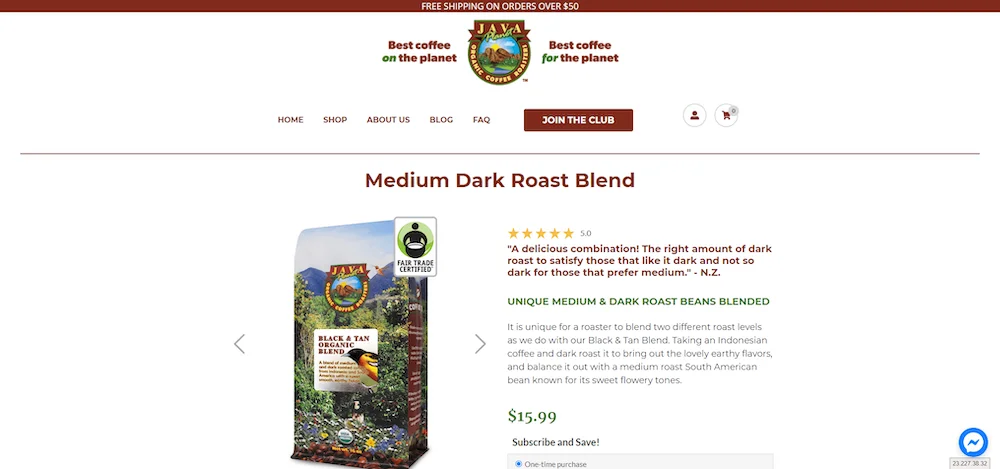
This case study features app integrations done for Java Planet Organic Coffee Roasters
Shopify & Zipify Pages
This site uses Zipify Pages Builder & Editor to display landing pages for its products. Zipify Pages adds several .liquid files to the theme which serve as templates for the different components used on the page builder. It’s possible to add code to these files, but any time the Zipify app gets update, added code would be overwritten. To prevent this, Zipify designates tags between which code can be placed.
<zp_additional_integration> ADD CODE HERE </zp_additional_integration>
Any code between the open and closing zp_additional_integration tags will be preserved.
For more information on Zipify templates and integration visit this Zipify help article
Shopify & Bold Subscriptions
This site also uses Bold Subscriptions to offer a subscription method on product pages wherever you find an ‘Add to Cart’ button.
Normal installation of the Bold Subscriptions app requires:
- Adding a few script files to the
/assetsfolder in the shopify themebold-common.liquidbold-ro-init.liquid
- Making sure they get rendered in the
<head>tag - Making a few changes to the product template so that the widget displays
- Add the element
<div class="ro_widget"></div>where the subscription widget should appear - Add the class
addtocartto the ‘Add to Cart’ button
- Add the element
For full instructions visit the installation guide.
Adding the Bold Subscription widget
to the Zipify Dynamic Buy Box block
This integration is similar to the standard Bold Subscription integration, but uses the Zipify templates instead of the theme’s usual templates. These are the two we care about for this integration:
- The Page template (
page.zipifypages.liquid). This is similar to your themestheme.liquidfile - The Dynamic Buy Box template (
dynamic-product.zipifypages.liquid). This is similar to your themesproduct.liquidfile
First we’ll need to make sure the bold-common.liquid and the bold-ro-init.liquid are loaded in the head tag of the page.zipifypages.liquid file. This is the same as adding it to the theme.liquid for a normal installation. Then we need to add the <div class="ro_widget"></div> element between our zp_additional_integration tags inside the dynamic-product.zipifypages.liquid
<zp_additional_integration> <div class="ro_widget"></div> </zp_additional_integration>
Special Cases
At this point it’s important test to see if the widget is being displayed where you expect. In certain cases, depending on the theme, other alterations may need to be made.
In this case we found that the widget only displayed when a subscription was already added to the cart. After working with Bold Subscriptions Support, we came up with additional code that needed to be added to the product form inside the dynamic-product.zipifypages.liquid file. This would allow the widget to always be shown.
<zp_additional_integration>
<script>
   window.BOLD.common.Shopify.saveProduct({{ product.handle | json }}, {{ product.id | json }});
   {%- for variant in product.variants -%}
      window.BOLD.common.Shopify.saveVariant({{ variant.id | json }}, {
         product_id: {{ product.id | json }},
         product_handle: {{ product.handle | json }},
         price: {{ variant.price | json }},
         group_id: '{{variant.metafields.bold_rp.rp_group_id}}'
      });
   {%- endfor -%}
</script>
</zp_additional_integration>
An important thing to consider when performing integrations is that there will almost always be code that is not accessible from your theme editor playing some role in the behavior of the integration. The likelihood that number of third-party systems you are integrating. It’s likely you’ll need to work with the third-party support teams to resolve unforeseen issues.
We have the experience working with these third-parties and the programming knowledge to quickly find a solution, whatever the integration may be.
For help with your Shopify app integration, fill out the form below.